
Call of Duty 2FA: How to Set Up an Authenticator App
Two-factor authentication keeps your Call of Duty account, the same one you play Warzone with, tied to you even if someone learns your password. Call of Duty supports codes from an authenticator app, so Authenticator App - Novaz can provide them.
A Call of Duty account holds purchases, in-game items, and payment details that thieves can resell. Besides an authenticator app, Call of Duty also offers SMS text codes. An authenticator app (TOTP) is usually the best balance of security and convenience — and it's safer than SMS codes, which can be intercepted through SIM-swap attacks.
2FA methods Call of Duty supports
- SMS text message
- Authenticator app (TOTP)
Before you start
- Your Call of Duty login and your Activision account password (you'll type it again at the end)
- Access to the email inbox on your account, where Call of Duty sends a verification code
- Authenticator App - Novaz installed on your iPhone or iPad
- The Call of Duty website open on a computer for scanning the QR code
Part 1: Turn on 2FA in Call of Duty
- 1
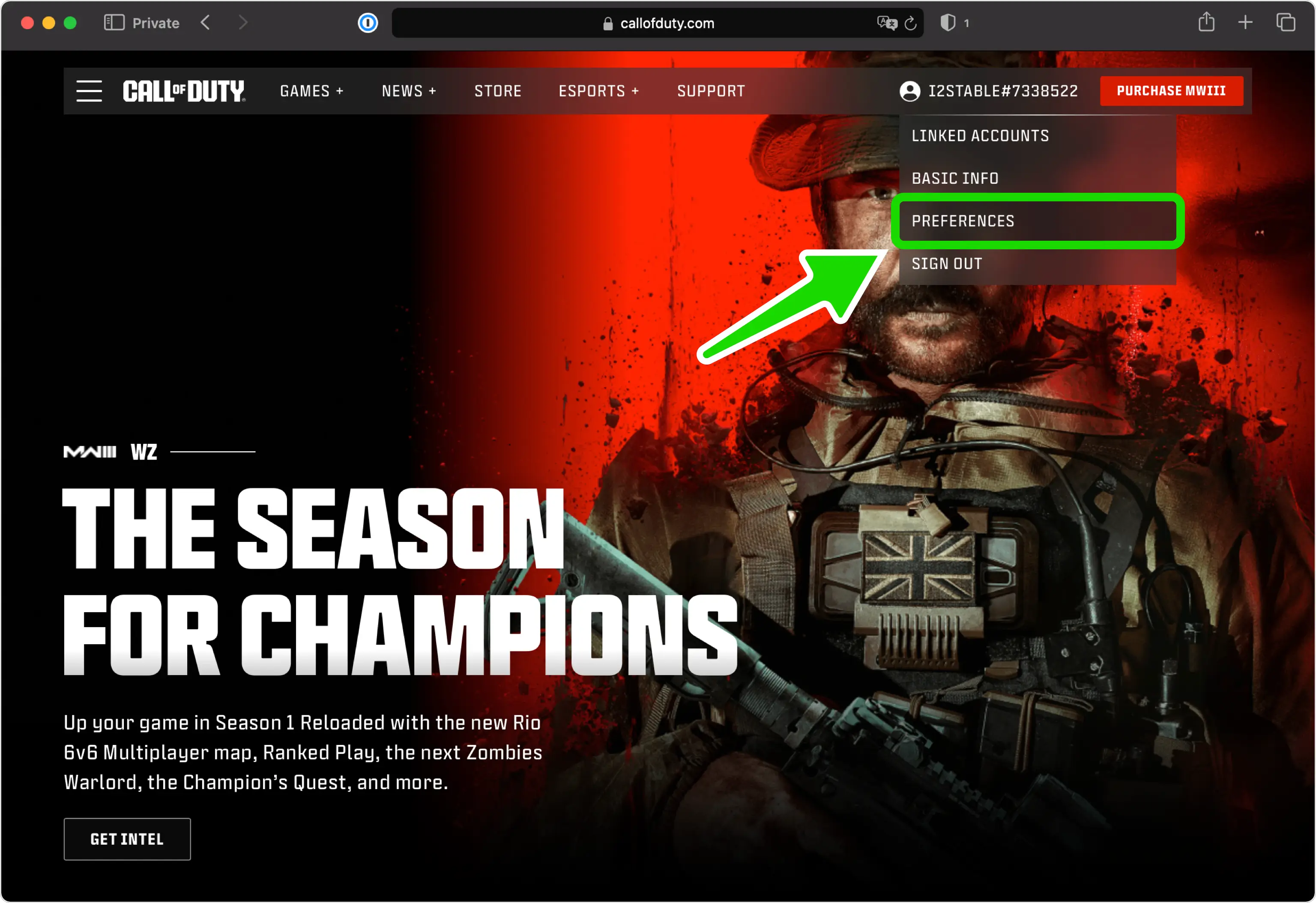
Open Preferences
Log in to Call of Duty and click your profile picture. In the menu that drops down, choose "Preferences".
- 2
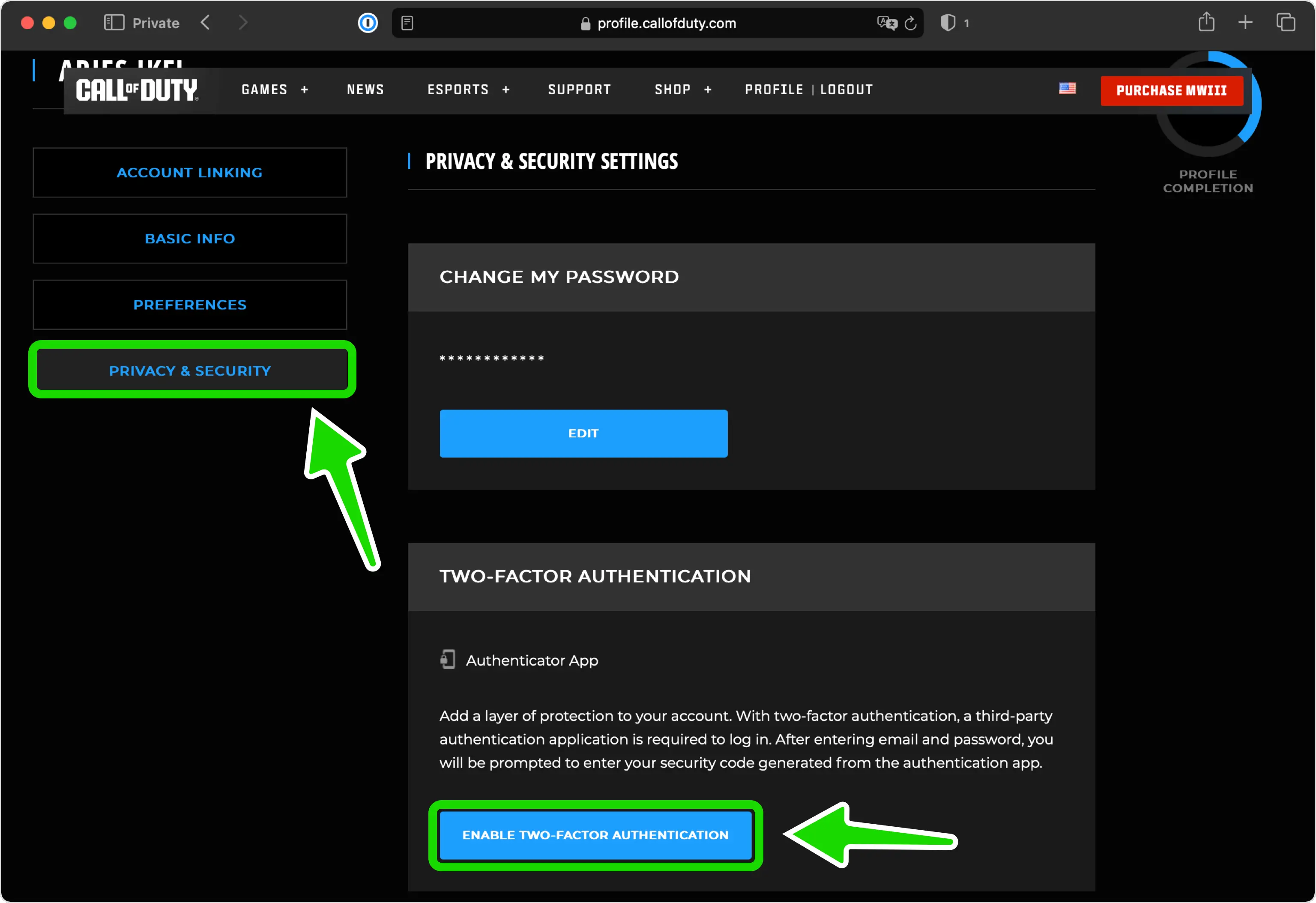
Enable two-factor authentication
Switch to the "Privacy & Security" section and scroll to the Two-Factor Authentication area. Click "Enable Two-Factor Authentication".
- 3
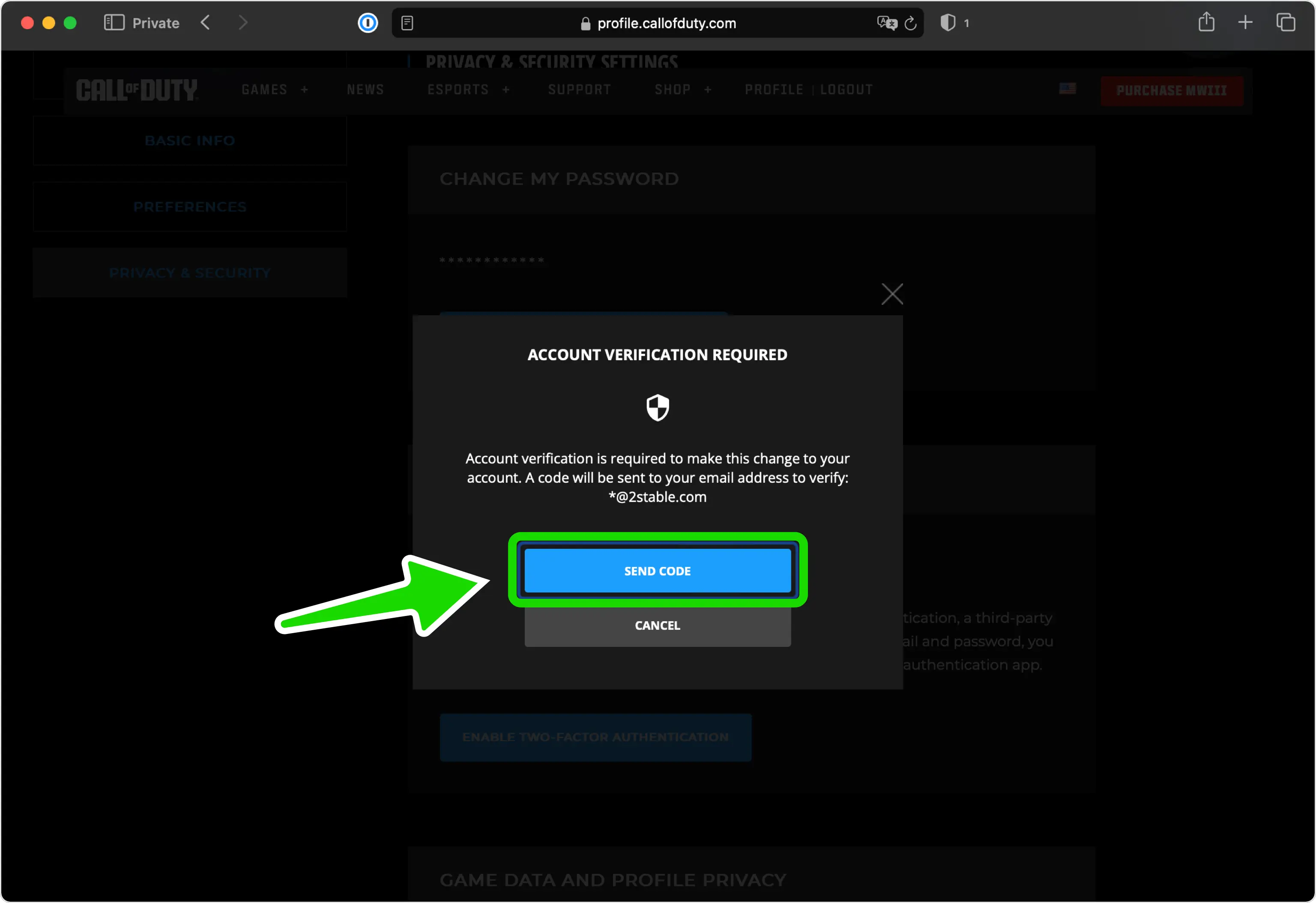
Check your email for a code
Call of Duty emails you a code made of letters and numbers. Keep it handy for the next screen.
- 4
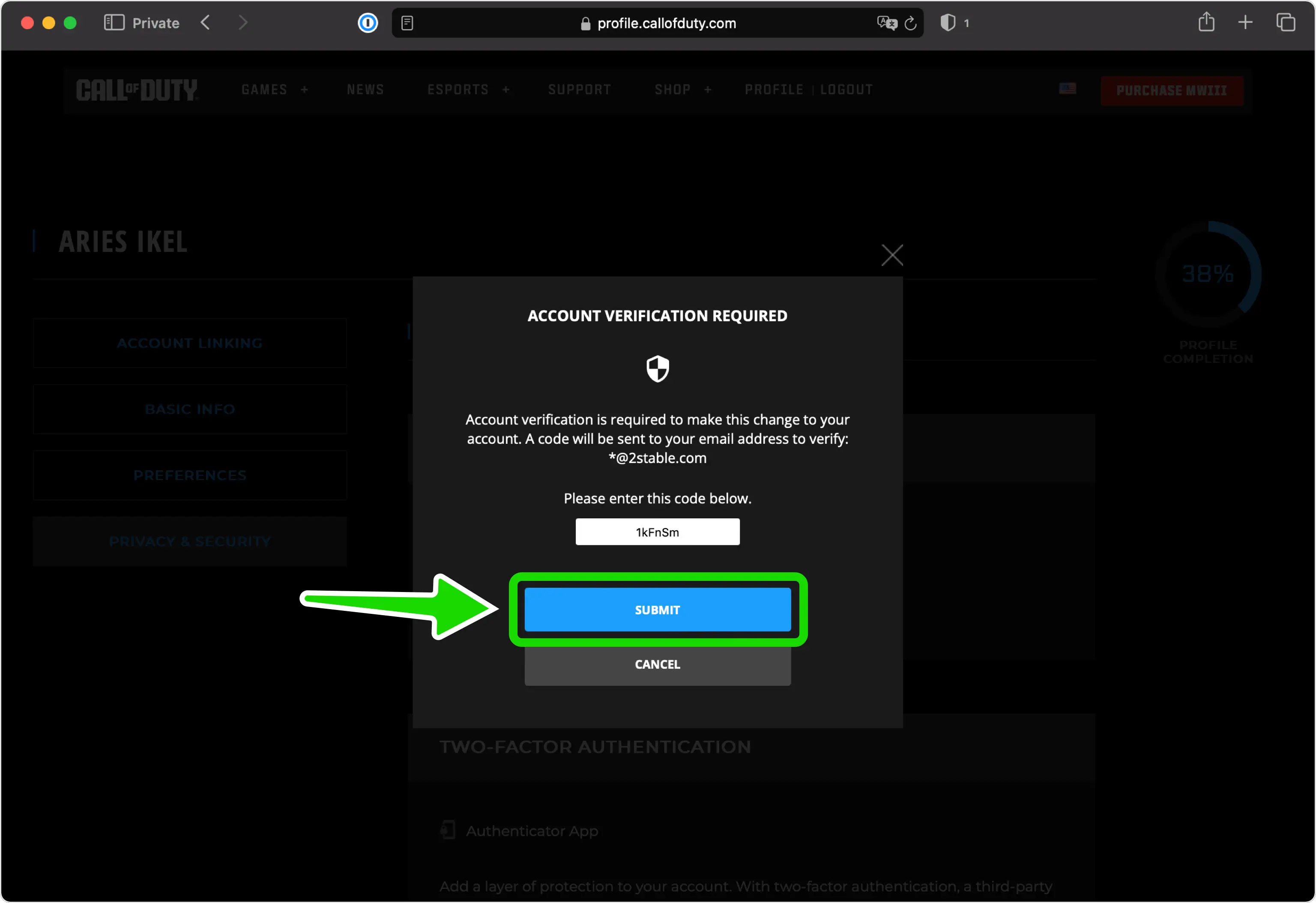
Enter the email code
Type the letters-and-numbers code from that email to prove the account is yours.
- 5
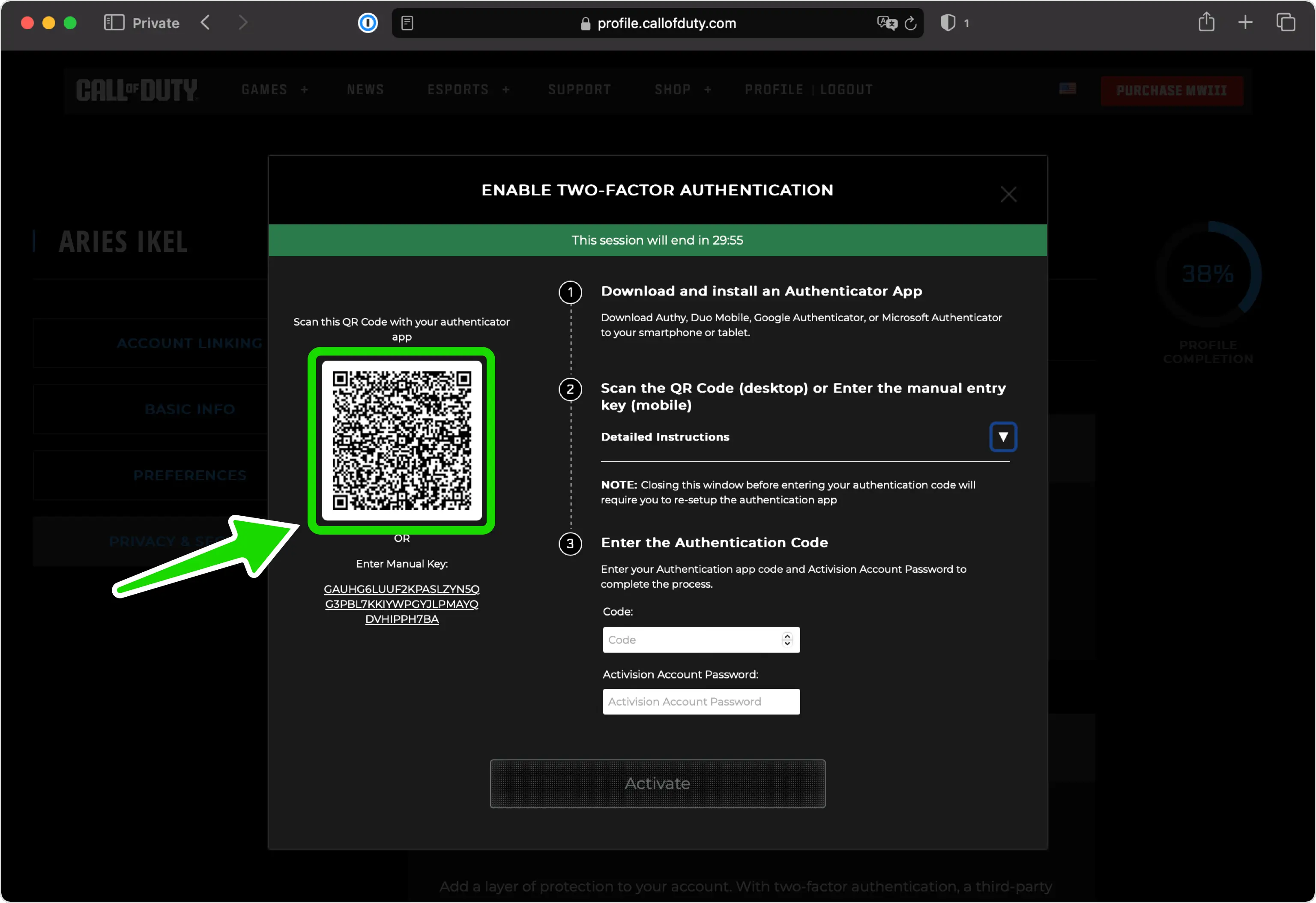
Keep the QR code open
Next, Call of Duty shows a QR code carrying your secret key. Leave this page open while you scan it in the next step. The QR code pictured here is a demo, so use the one on your screen.
Part 2: Add Call of Duty to Authenticator App - Novaz
- 6
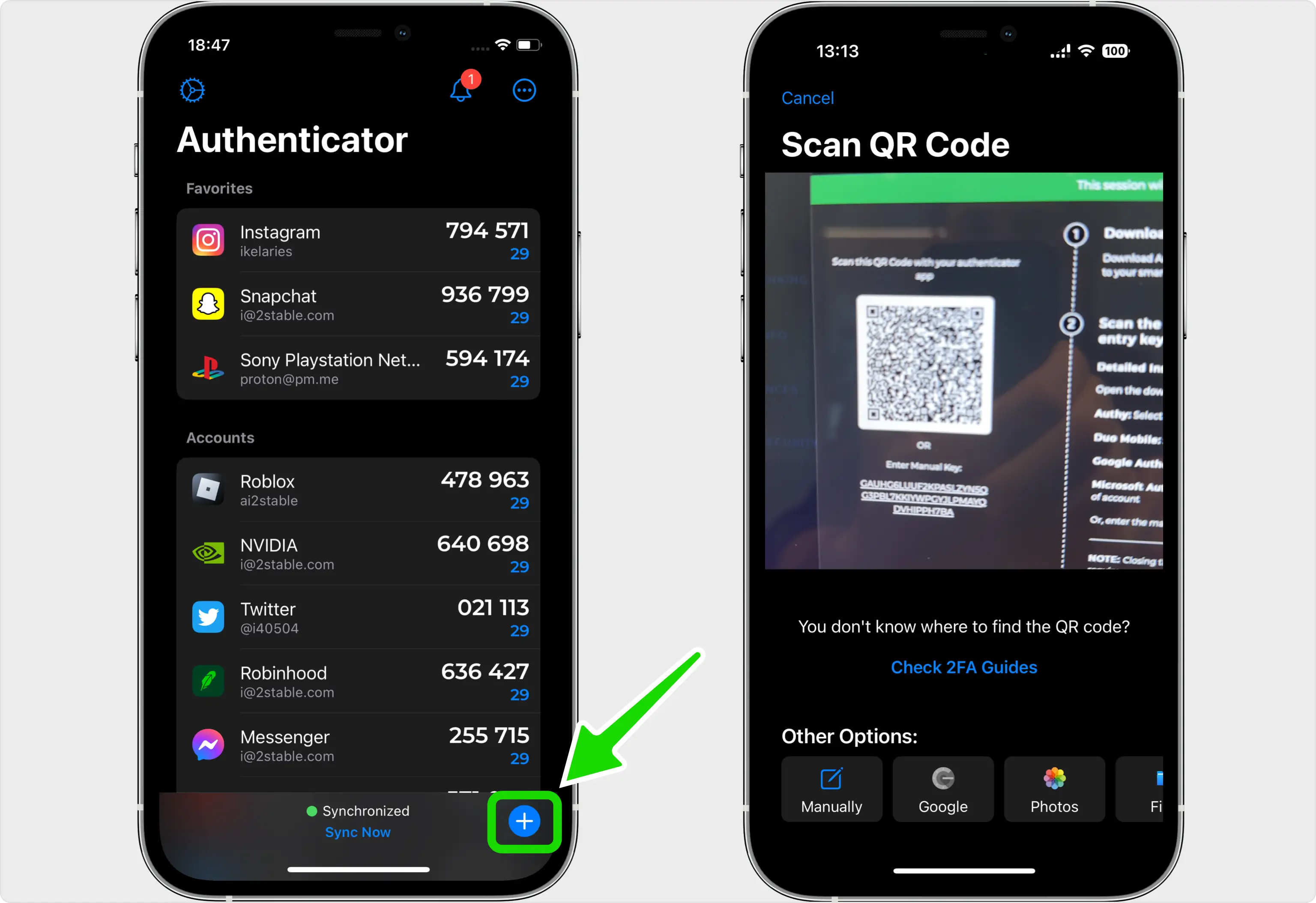
Scan the QR code with Authenticator App - Novaz
In Authenticator App - Novaz, tap the + button and aim your camera at the QR code on the Call of Duty page.
- 7
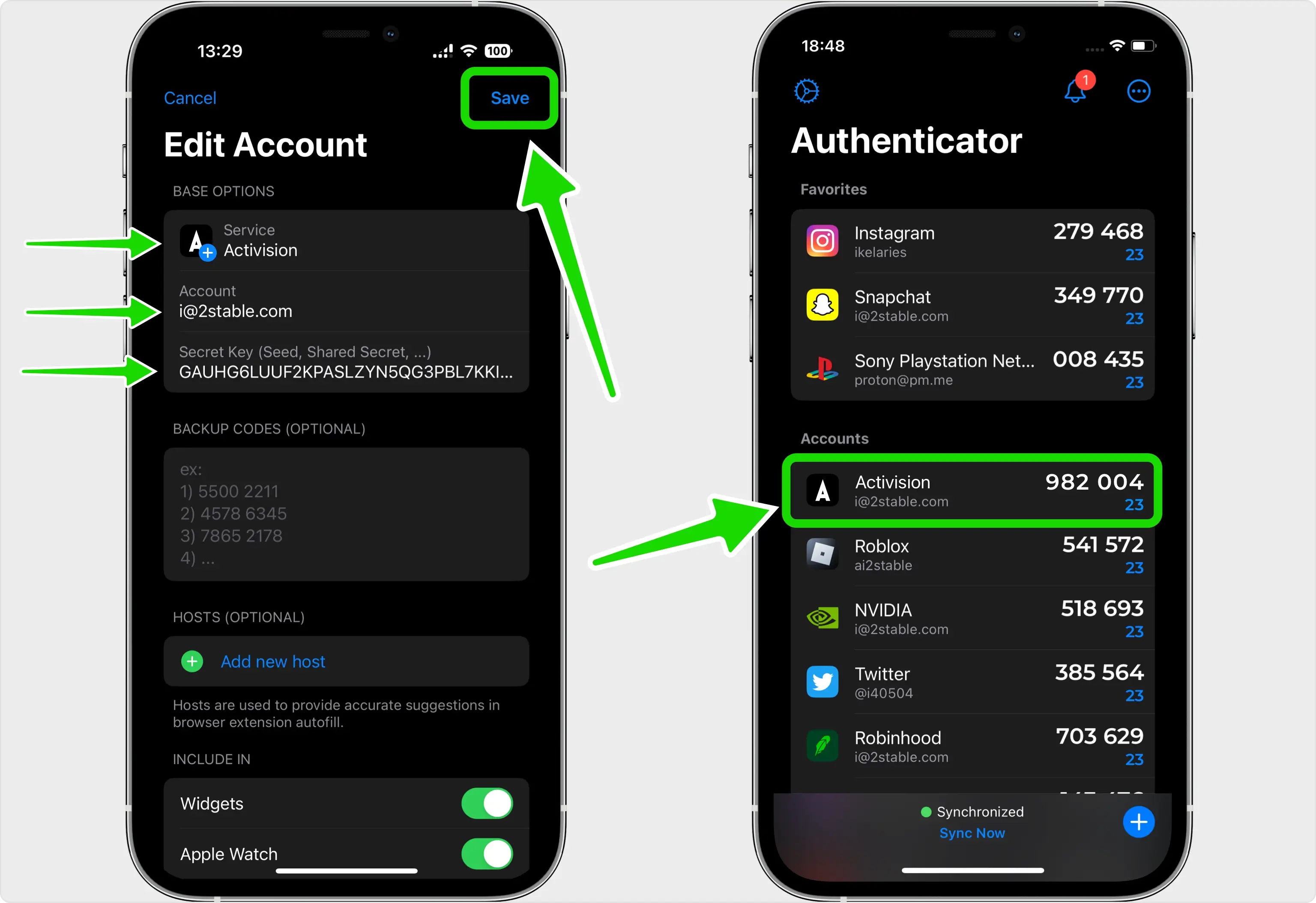
Save the Call of Duty account
When the scan finishes, the app fills in the Call of Duty logo, account name and secret key. Tap "Save" to add it. You can tap the icon first if you'd like a different one.
Part 3: Confirm and finish
- 8
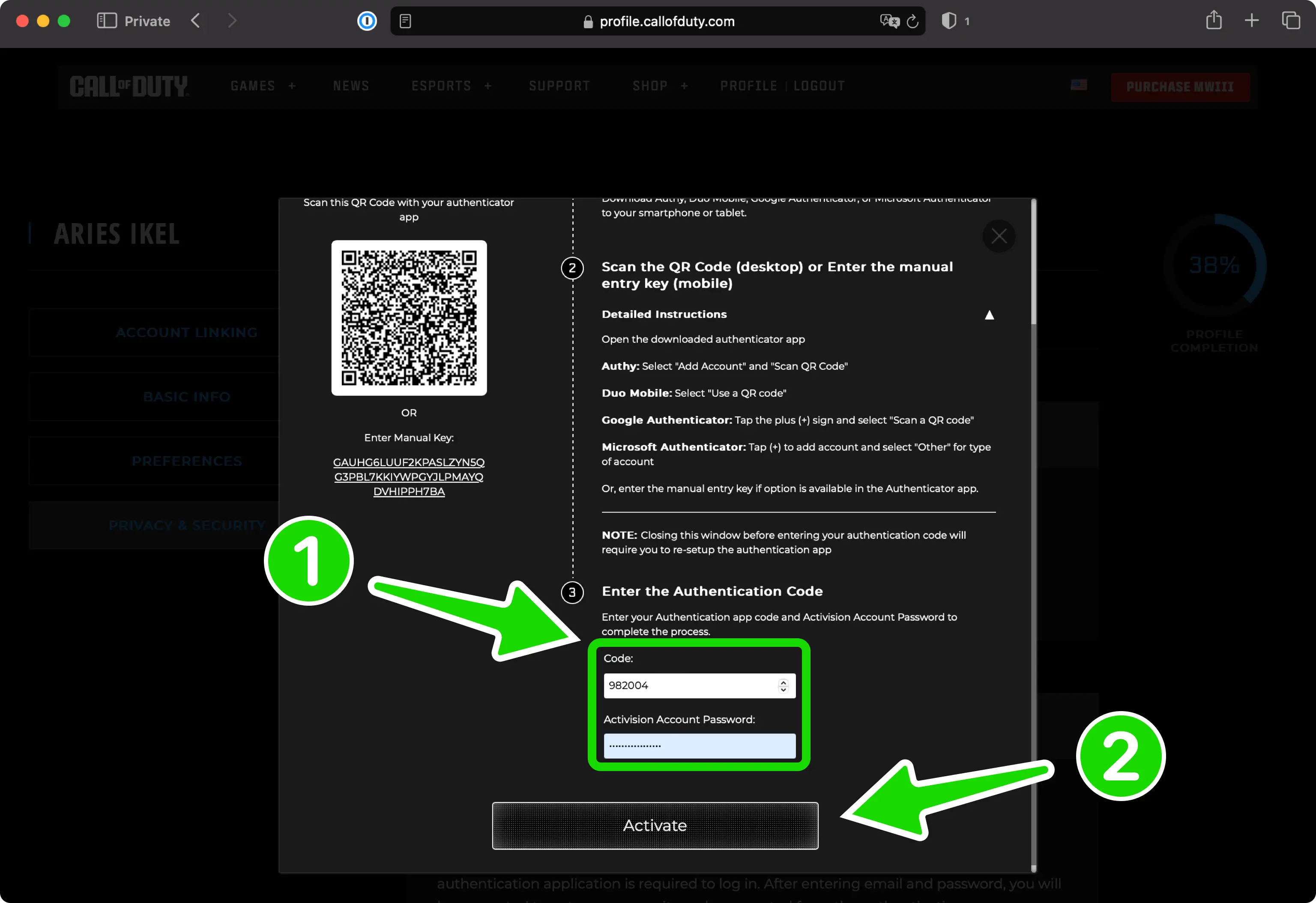
Enter your code and password, then Activate
Head back to the Call of Duty page. Type the one-time code from Authenticator App - Novaz in its field, add your Activision Account Password, and click "Activate".
- 9
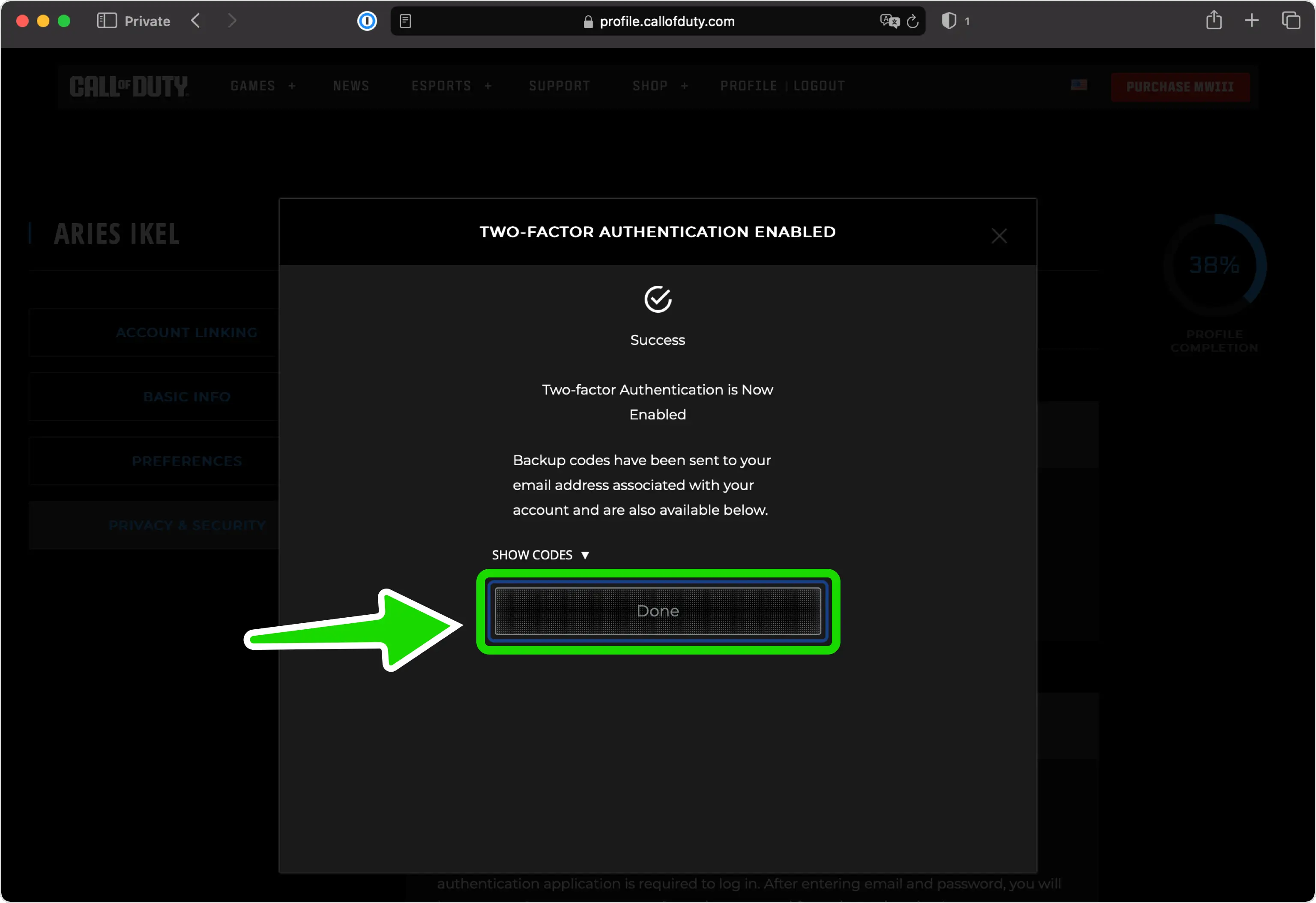
Store your backup codes and click Done
Two-factor authentication is now on, and future logins will ask for a code from Authenticator App - Novaz. Save the backup codes Call of Duty shows, either in the app or somewhere secure, then click "Done".
If something goes wrong
- The authenticator code is rejected: make sure your iPhone's date and time are set automatically (Settings > General > Date & Time) and enter a fresh code.
- The code expired while you were typing your password: wait for the next code in Authenticator App - Novaz and enter it straight away.
- The email code didn't arrive: check your spam folder, and when it comes, enter it exactly as sent, letters and numbers included.
- You lost the phone with your codes: sign in using one of the backup codes you saved at the end of setup.
Menu names on Call of Duty can change — the official Call of Duty 2FA documentation ↗ always has the exact, current path.
How to recover your Call of Duty account
If you lose access to your authenticator and Call of Duty gave you backup or recovery codes when you turned on 2FA, sign in with one of them; keep them somewhere safe, away from your phone. Not every service issues codes. If Call of Duty doesn't, or you didn't save them, use Call of Duty's account-recovery or support process (or ask your admin, for a work account) to get back in.
Frequently asked questions
- Does Call of Duty work with authenticator apps like Authenticator App - Novaz?
- Yes. Call of Duty supports TOTP authenticator apps, so you can generate its two-factor codes in Authenticator App - Novaz.
- Is Call of Duty two-factor authentication free?
- Yes. Enabling authenticator-app 2FA on Call of Duty is free — you only need the free Authenticator App - Novaz.
- What if I lose access to my Call of Duty 2FA codes?
- If Call of Duty gave you backup or recovery codes during setup, sign in with one of them. If it didn't, or you didn't save them, use Call of Duty's account recovery or contact its support (or your admin, for a work account), then add the account to Authenticator App - Novaz again.
Generate your Call of Duty codes in Authenticator App - Novaz
Free, offline, and encrypted. One tap for every 6-digit code.
Get the appMore Gaming guides



Novaz is not affiliated with, endorsed by, or sponsored by Call of Duty. Call of Duty and its logo are trademarks of their respective owner and are used here for identification only.