
Dropbox 2FA: How to Set Up an Authenticator App
Turning on two-step verification means a stolen Dropbox password alone won't open your files. Dropbox can check a time-based code from an authenticator app at sign-in, and Authenticator App - Novaz can generate that code for you.
A Dropbox account may store backups of your most important data, so 2FA keeps that safe. Besides an authenticator app, Dropbox also offers SMS text codes and security keys. An authenticator app (TOTP) is usually the best balance of security and convenience — and it's safer than SMS codes, which can be intercepted through SIM-swap attacks. For the strongest protection, Dropbox also supports hardware security keys.
2FA methods Dropbox supports
- SMS text message
- Authenticator app (TOTP)
- Security key (U2F / WebAuthn)
Before you start
- Your Dropbox email and password
- Authenticator App - Novaz installed on your iPhone or iPad
- Dropbox open in a browser on your computer, so your phone can scan the QR code
- A secure spot for your backup codes, like a password manager or a printed sheet
Part 1: Turn on 2FA in Dropbox
- 1
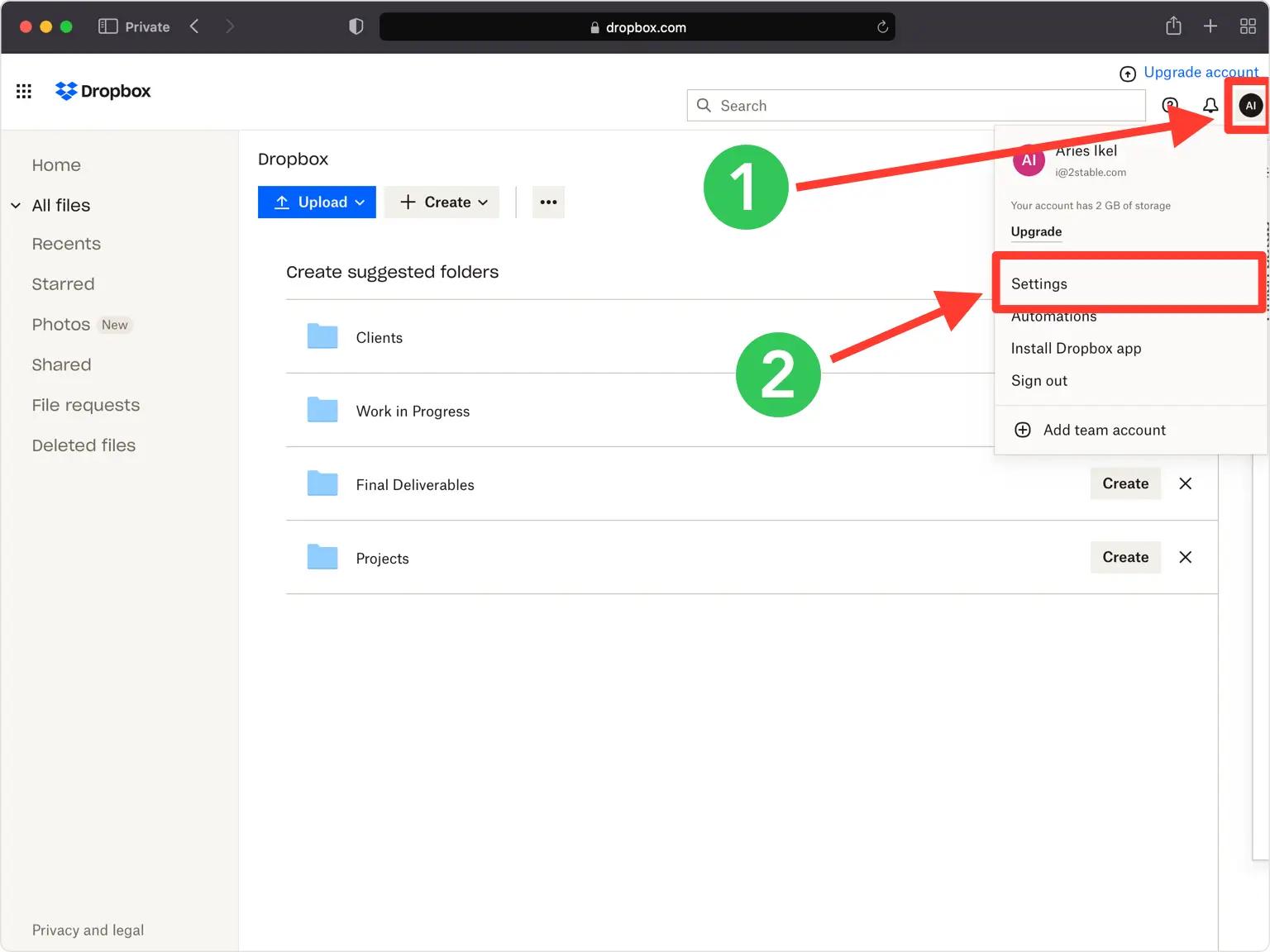
Open your Dropbox settings
Once you're signed in to Dropbox, select your account icon in the top-right corner. Choose "Settings" from the menu that drops down.
- 2
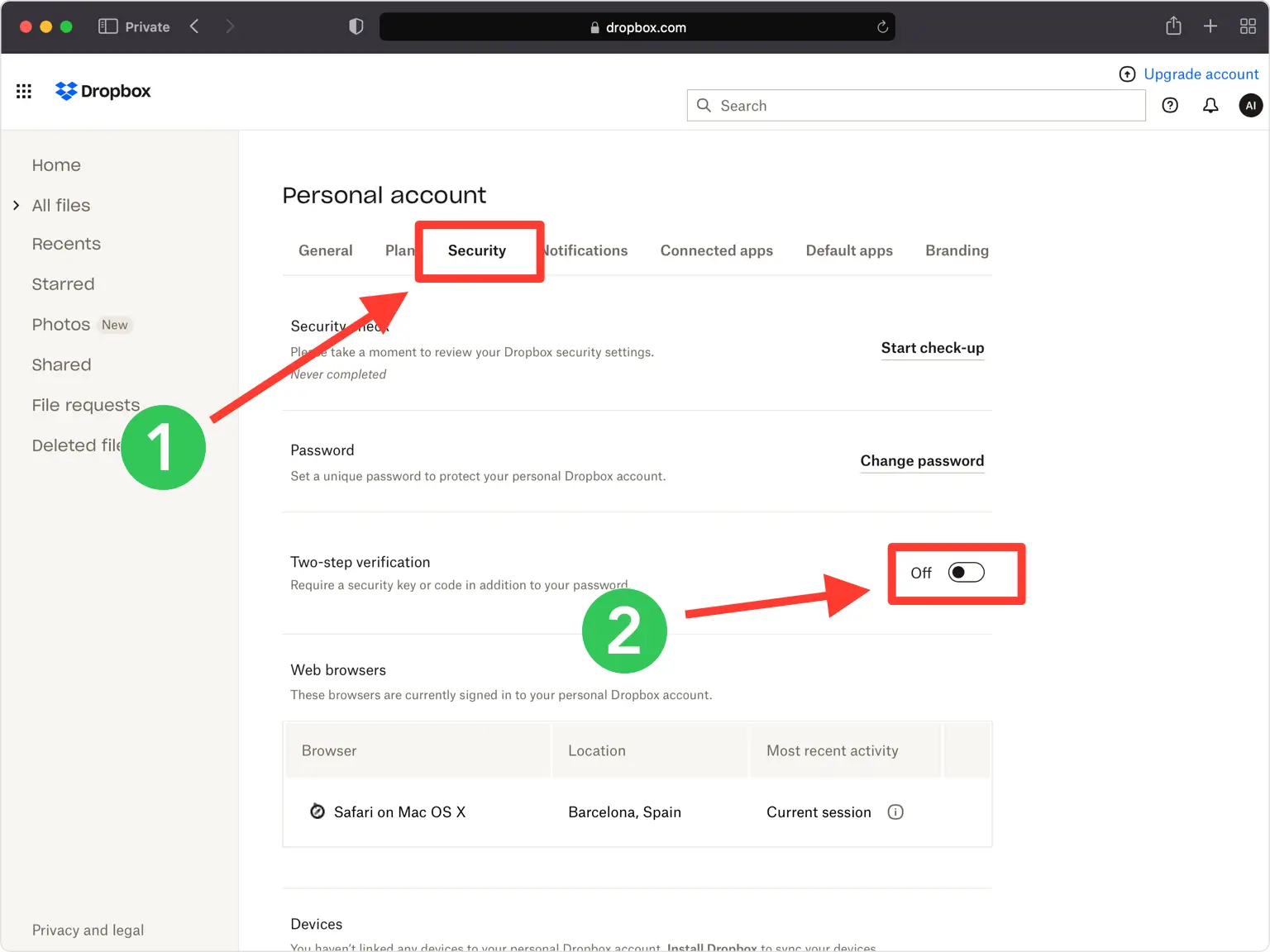
Switch on two-step verification
Find the "Security" section and flip the toggle next to "Two-step verification".
- 3
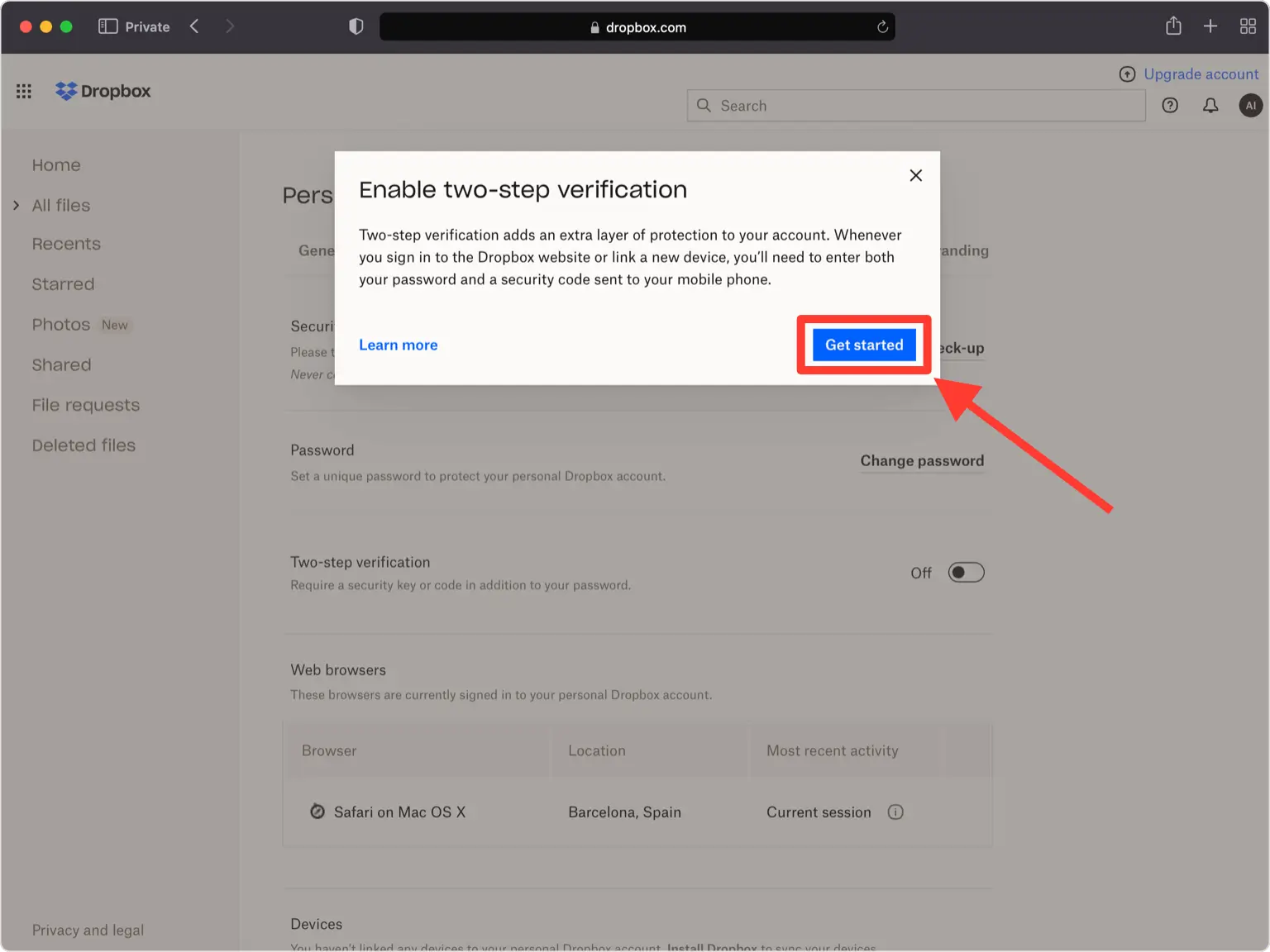
Start the setup
Select "Get started" to move on.
- 4
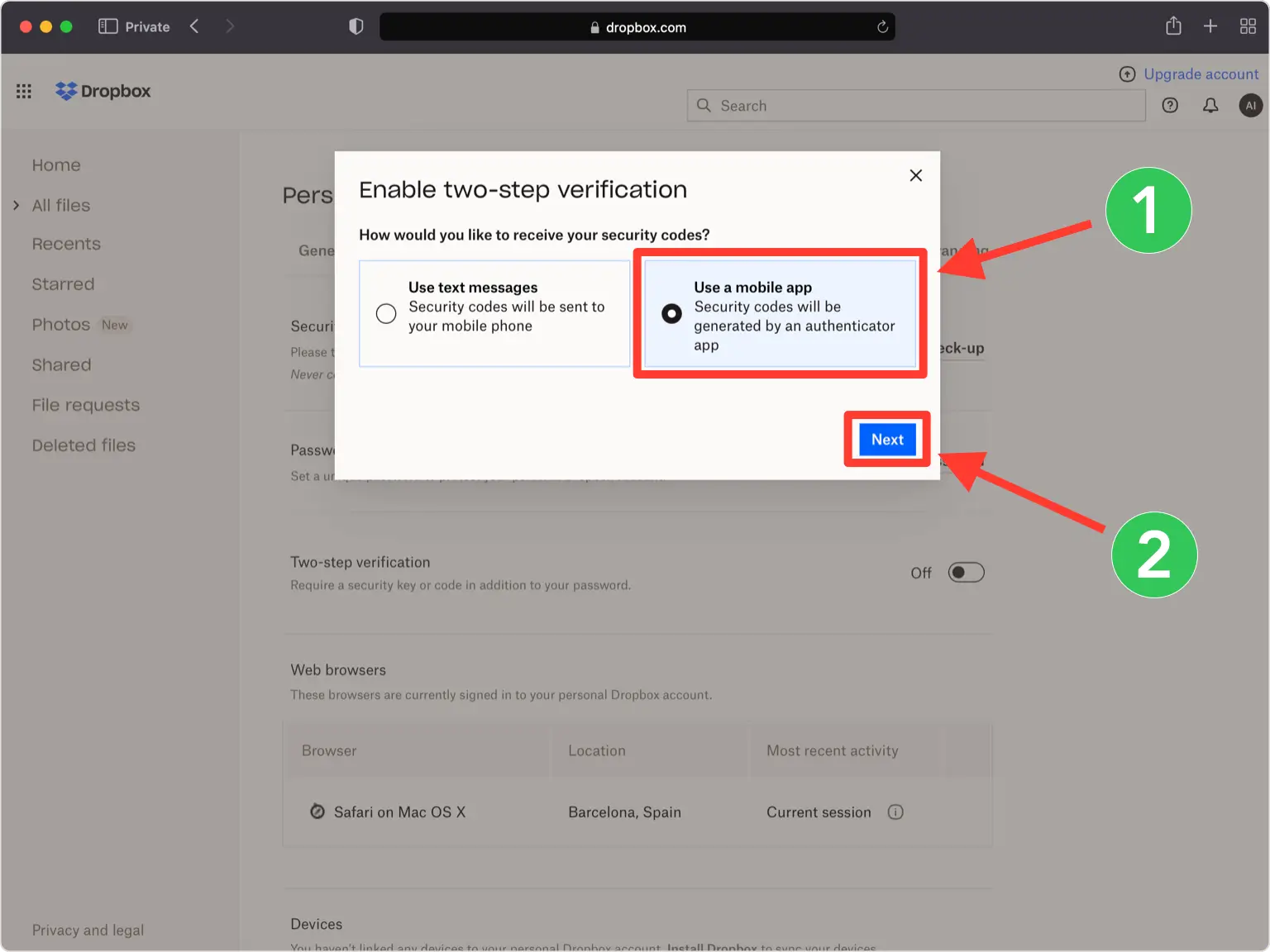
Pick the mobile app method
Choose "Use a mobile app" as your verification method, then select "Next".
- 5
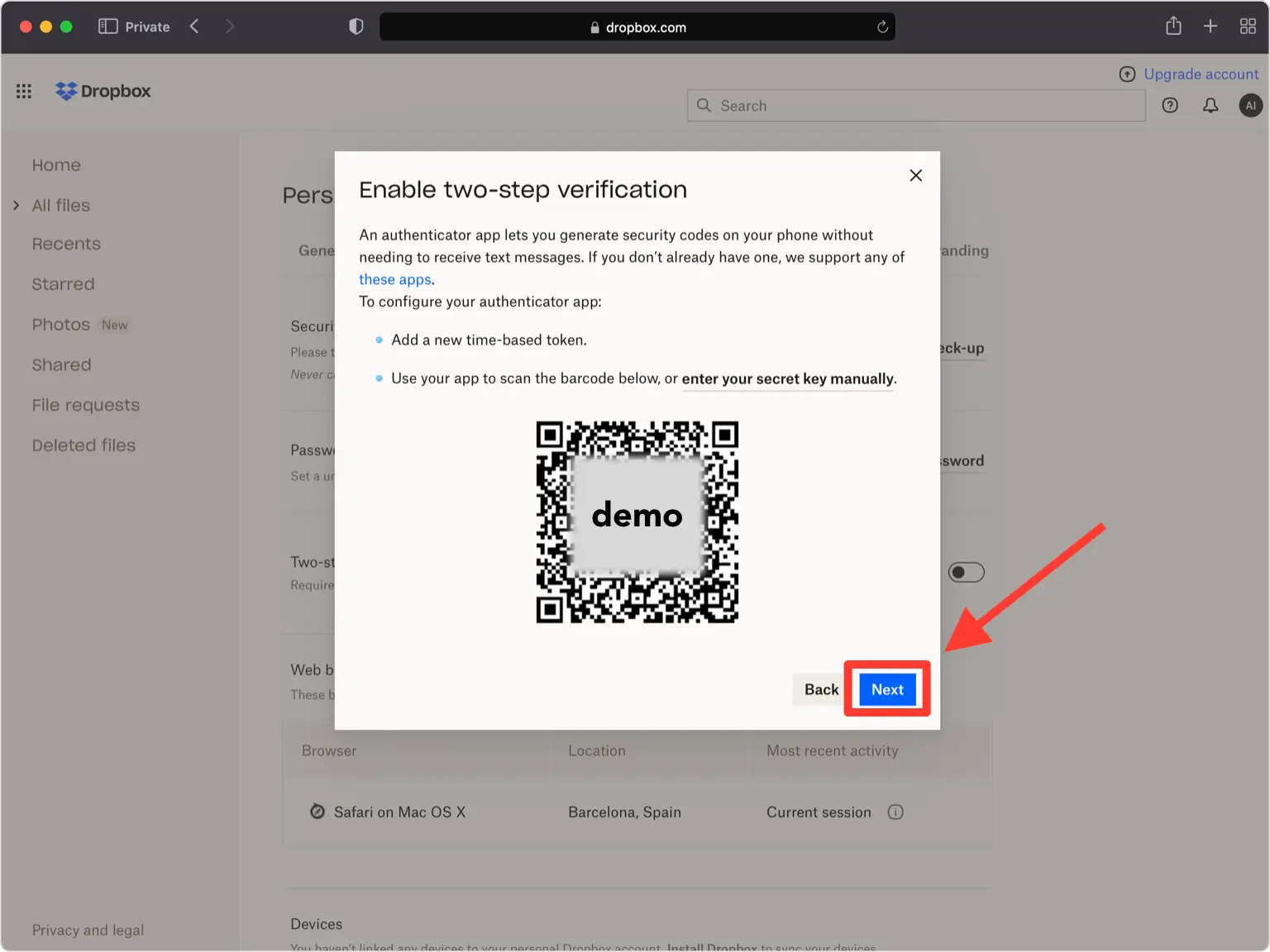
Leave the QR code on screen
Dropbox now shows a QR code in a pop-up. Keep that window open while you pick up your phone. The code in the screenshot is only a sample, so scan the one on your own screen.
Part 2: Add Dropbox to Authenticator App - Novaz
- 6
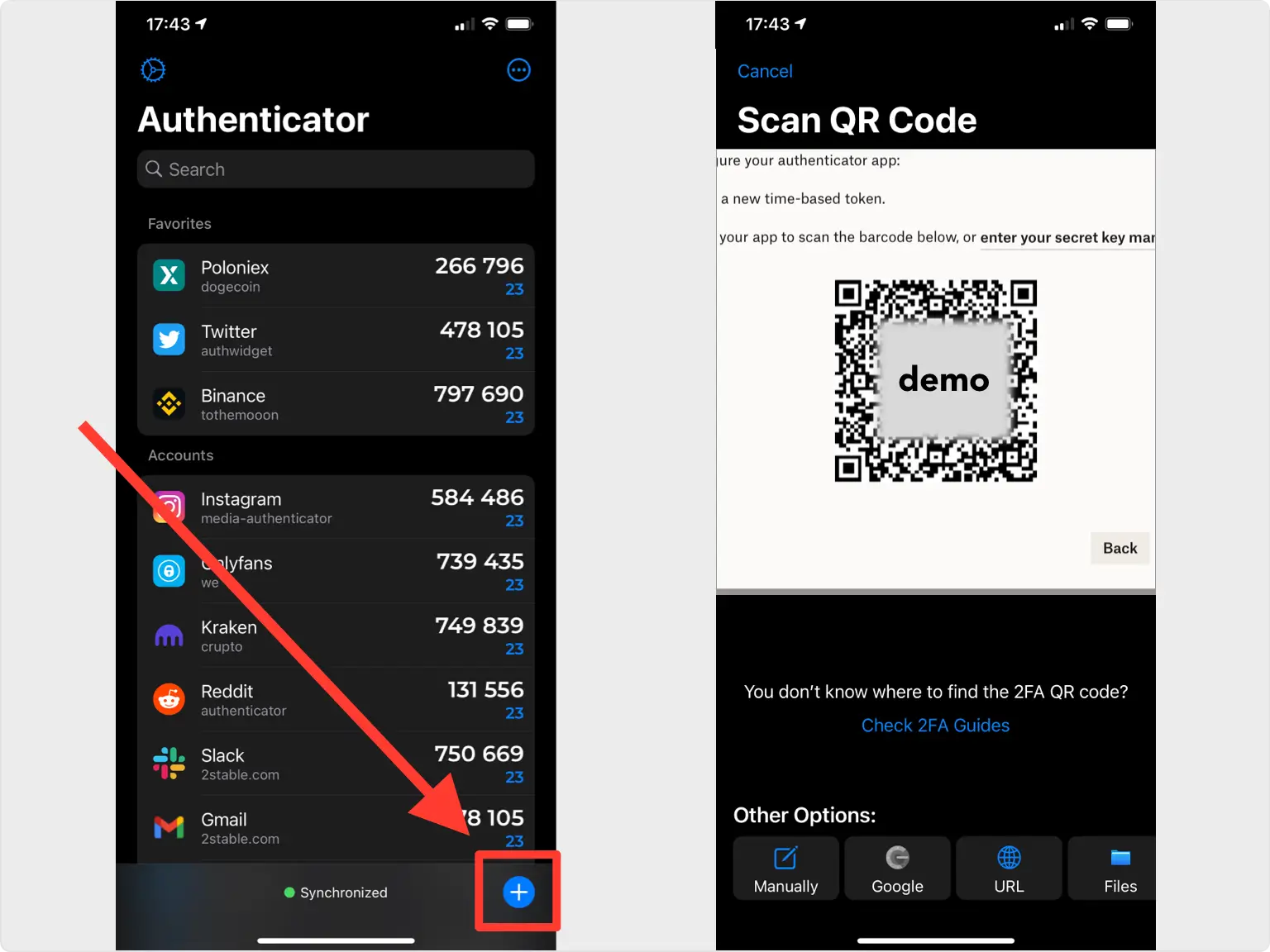
Scan the QR code with Authenticator App - Novaz
In Authenticator App - Novaz, tap the plus button at the bottom and point your camera at the QR code on your computer. If the camera can't read it, tap the plus button again, pick "Files", and follow the prompts to import the QR code image.
- 7
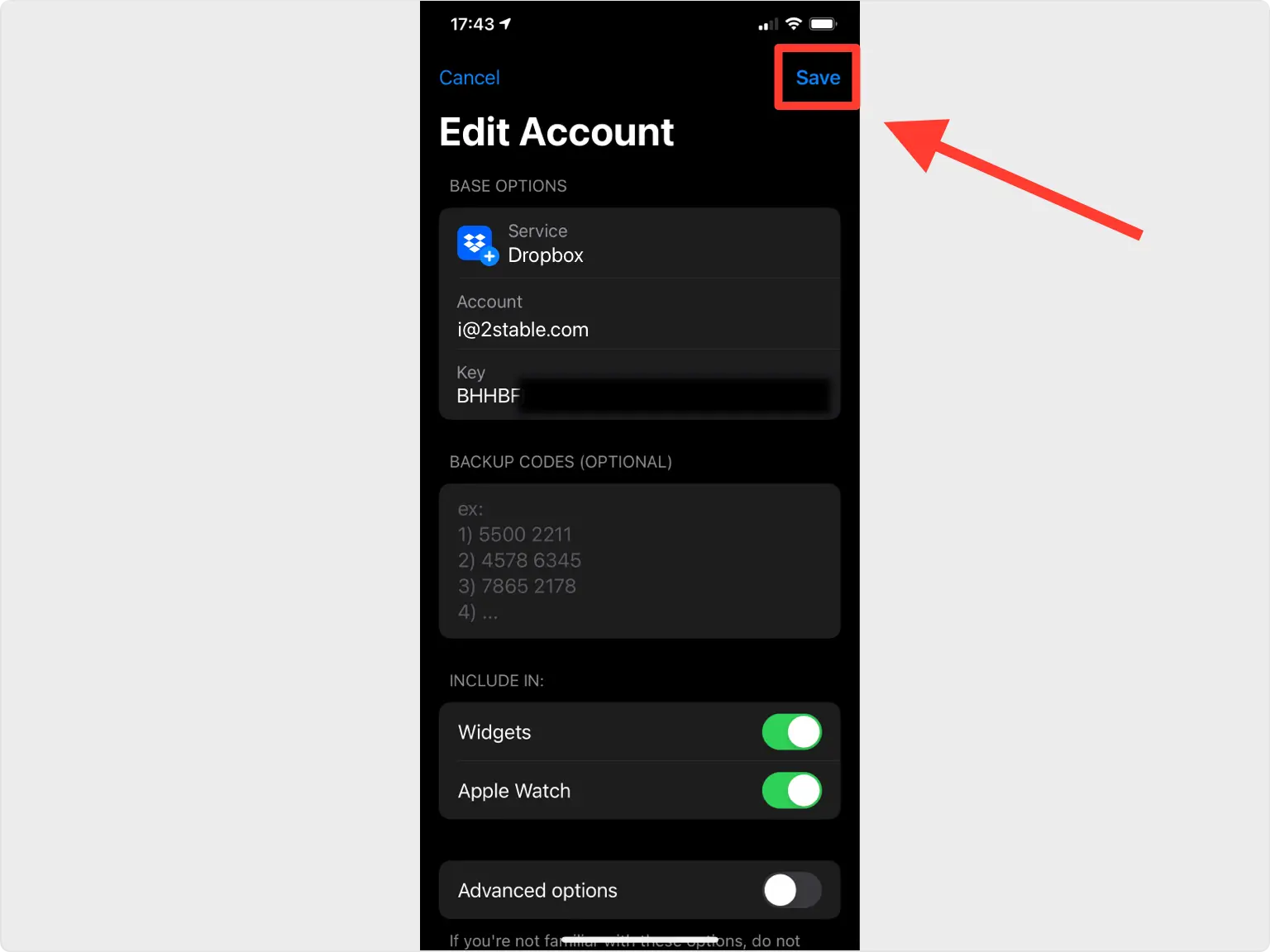
Check the details and save
The app fills in the Dropbox logo, account name, and secret key for you. Rename the account or swap the icon if you like, then tap "Save".
Part 3: Confirm and finish
- 8
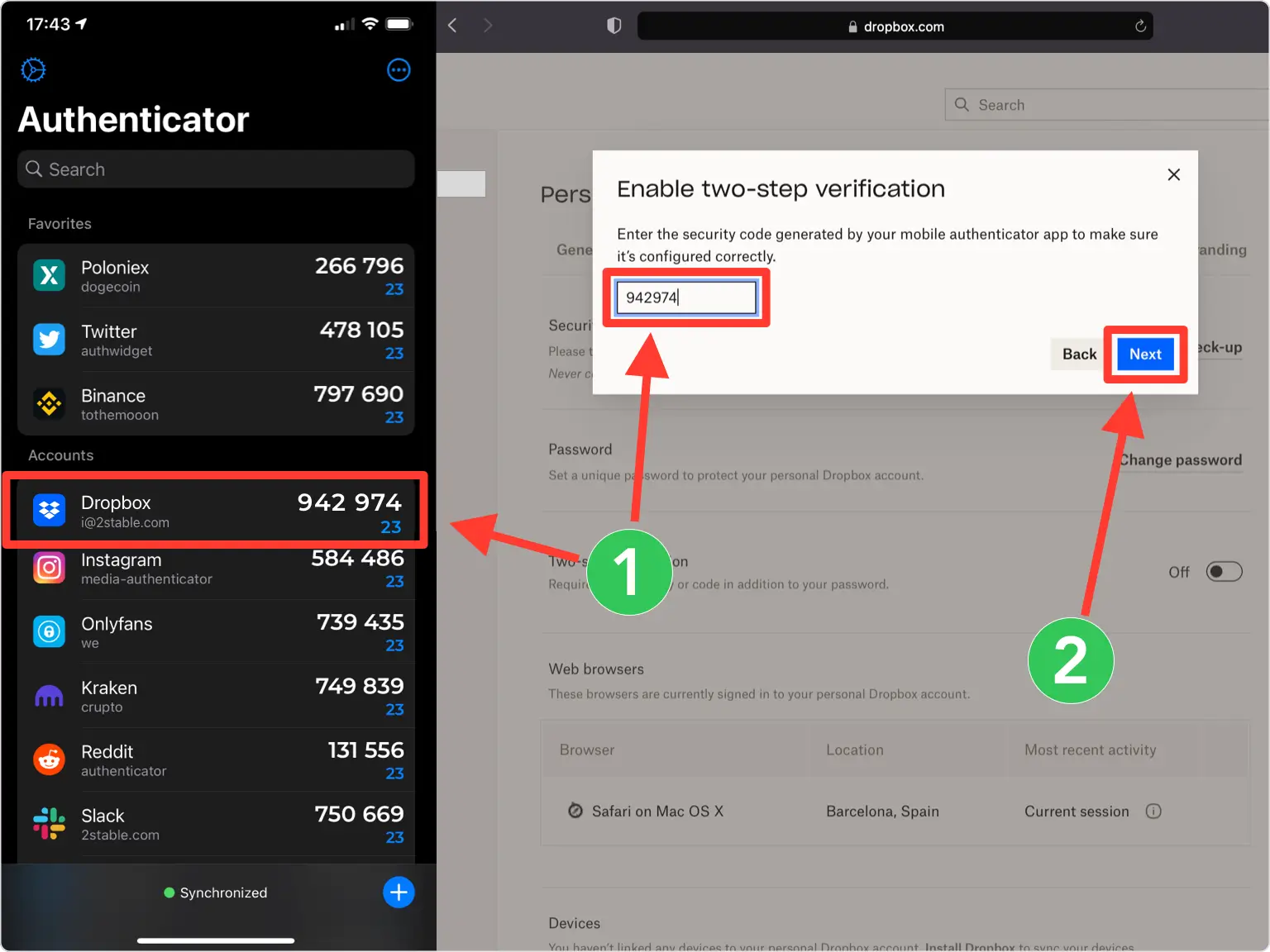
Enter the code on Dropbox
Copy the current code from Authenticator App - Novaz, type it into the Dropbox page, and select "Next". A new code appears every 30 seconds, so use whichever one is showing.
- 9
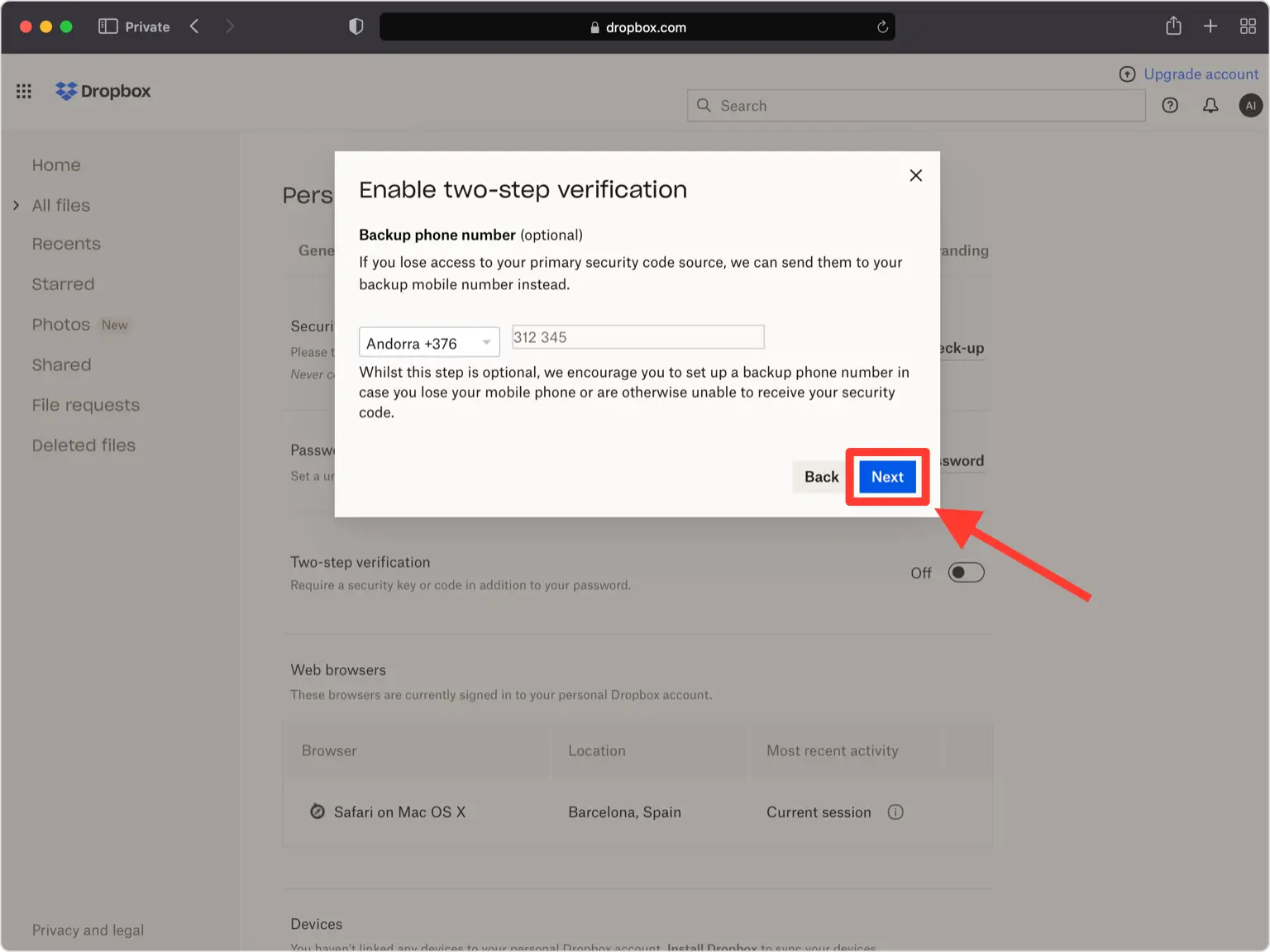
Add a backup phone number (optional)
Dropbox offers a phone number as an extra backup. Enter one or skip it, then select "Next".
- 10
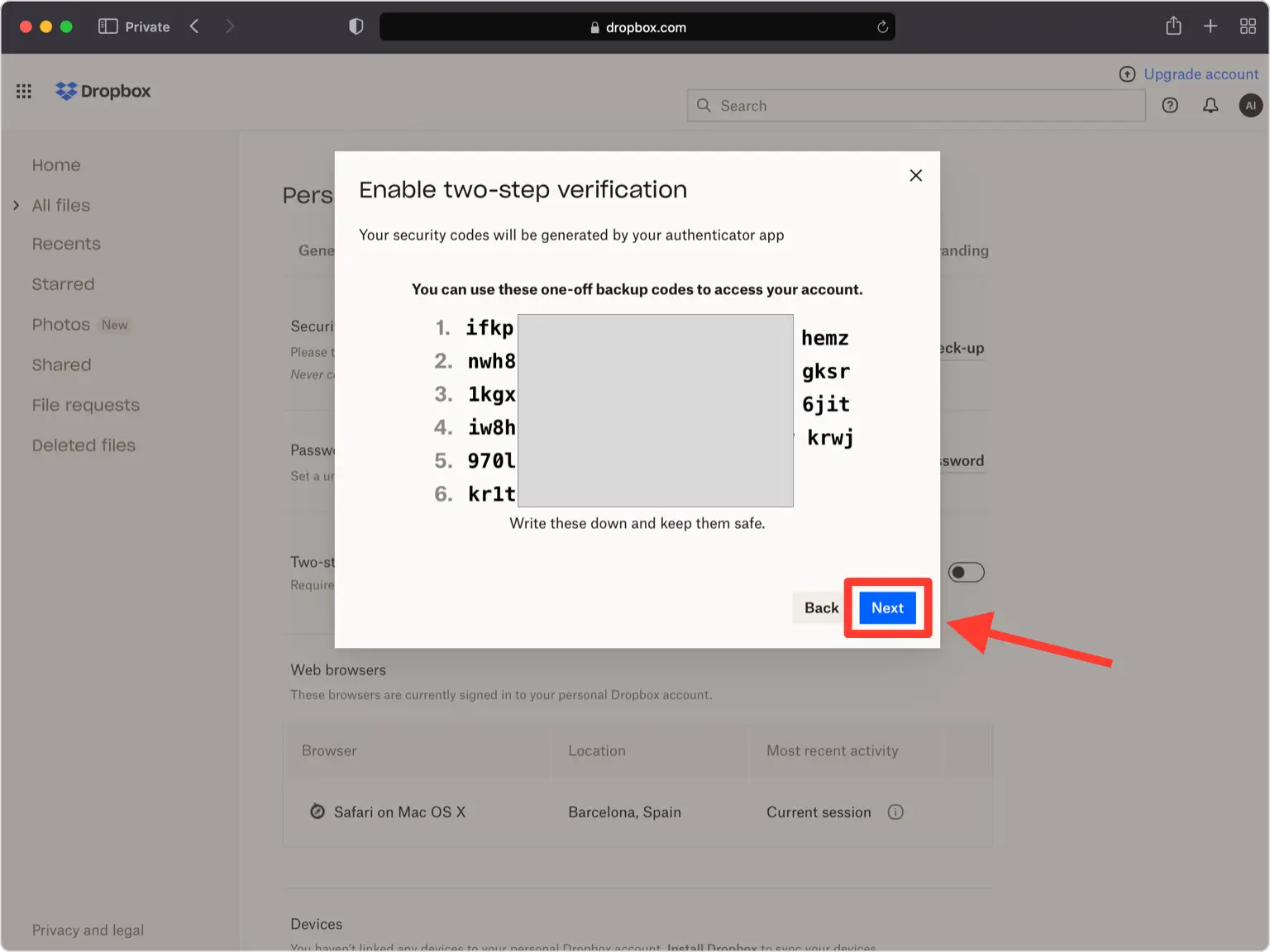
Store your backup codes
Your account now has a second layer of protection, and Dropbox hands you a set of backup codes. Copy them into Authenticator App - Novaz, keep a screenshot in your photos, or file them anywhere else you trust, as long as it's safe. Select "Next" when you're finished.
- 11
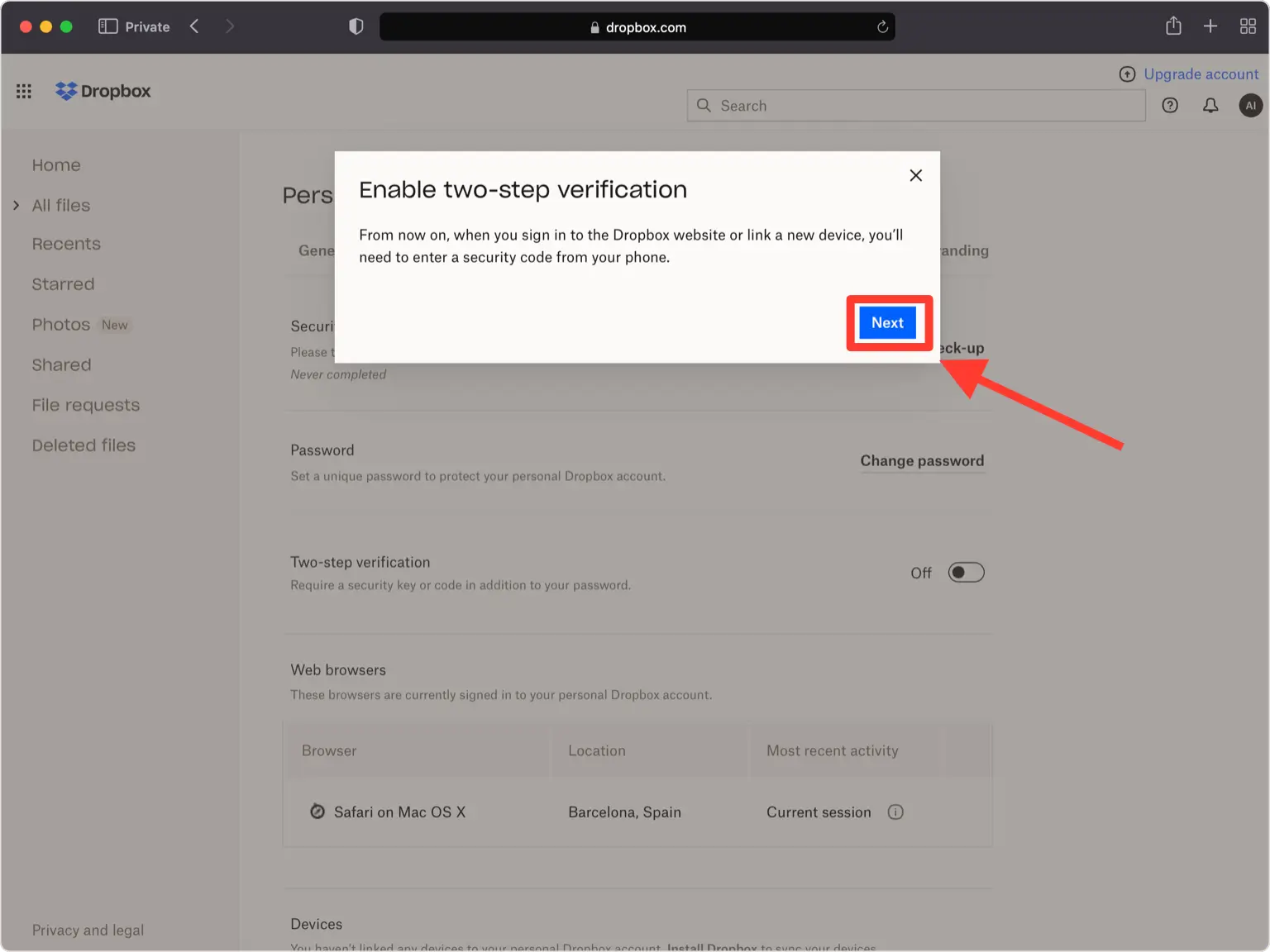
Wrap up
Two-step verification is now on for Dropbox. Each time you sign in, open Authenticator App - Novaz to get your code.
If something goes wrong
- Dropbox says the code is wrong: on your iPhone, open Settings > General > Date & Time, make sure "Set Automatically" is on, and try a fresh code.
- The code ran out before you finished typing: wait for the next one to appear and enter it right away.
- The camera won't pick up the QR code: zoom the browser page so the code is larger, or import a screenshot of it through "Files" in Authenticator App - Novaz.
- Your phone is lost or replaced: sign in with one of the backup codes you saved, or use your backup phone number if you added one.
Menu names on Dropbox can change — the official Dropbox 2FA documentation ↗ always has the exact, current path.
How to recover your Dropbox account
If you lose access to your authenticator and Dropbox gave you backup or recovery codes when you turned on 2FA, sign in with one of them; keep them somewhere safe, away from your phone. Not every service issues codes. If Dropbox doesn't, or you didn't save them, use Dropbox's account-recovery or support process (or ask your admin, for a work account) to get back in.
Frequently asked questions
- Does Dropbox work with authenticator apps like Authenticator App - Novaz?
- Yes. Dropbox supports TOTP authenticator apps, so you can generate its two-factor codes in Authenticator App - Novaz.
- Is Dropbox two-factor authentication free?
- Yes. Enabling authenticator-app 2FA on Dropbox is free — you only need the free Authenticator App - Novaz.
- What if I lose access to my Dropbox 2FA codes?
- If Dropbox gave you backup or recovery codes during setup, sign in with one of them. If it didn't, or you didn't save them, use Dropbox's account recovery or contact its support (or your admin, for a work account), then add the account to Authenticator App - Novaz again.
- Should I use an authenticator app or a security key on Dropbox?
- Dropbox supports both. An authenticator app like Authenticator App - Novaz is free and works on any phone; a hardware security key adds phishing resistance. You can enable both.
Generate your Dropbox codes in Authenticator App - Novaz
Free, offline, and encrypted. One tap for every 6-digit code.
Get the appMore Backup guides




Novaz is not affiliated with, endorsed by, or sponsored by Dropbox. Dropbox and its logo are trademarks of their respective owner and are used here for identification only.